
A site that “went live on Friday” can fail quietly on a later Monday. A contact form stops sending. A login expires. A page no longer matches the business. Nobody notices, because the site still opens. This guide gives you a simple plan for the first 30 days, so small problems are found early.
What is a website launch checklist
A website launch checklist is a short list of things you check right after your site goes live and again in the first month. Each item is small and clear. You can tick it off in a few minutes.
The goal is not to make the site perfect. The goal is to prove that the important parts work and that your company controls them. A site can look finished and still have a broken form, an old backup nobody can restore, or a domain that belongs to a former vendor.
Why websites fail quietly after launch
Most launch problems are not loud. The site does not crash. It just stops doing its job. Here are the common ones.
The contact form stops sending. The email address changes, a spam filter blocks messages, or a setting expires. Leads go nowhere, and nobody knows.
A login expires. A hosting account, a plugin licence or an email service may need renewing. If the renewal goes to a vendor’s inbox, you will not see the warning.
Backups exist but cannot be restored. The file is there, but nobody has tried to use it.
Pages no longer match the business. Prices, phone numbers or services change, but the website stays the same.
Nobody knows who owns what. The domain, hosting and analytics are in someone else’s name.
Each of these is easy to fix if you find it early. Each one is costly if you find it after a customer complains. That is why the first 30 days matter most.
Day-one checks
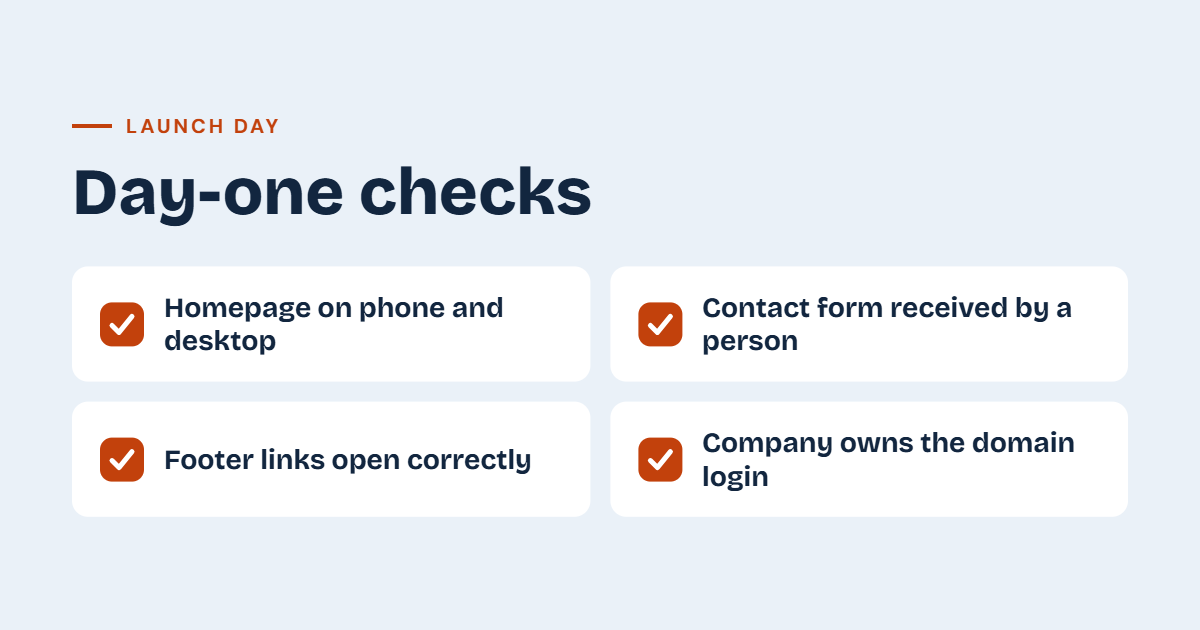
Open the homepage on a phone and on a desktop
Most visitors will see your site on a phone first. Open the homepage on a real phone, not only on a resized desktop window. Check that:
The page loads without long waiting.
Text is easy to read without zooming.
Buttons are big enough to tap.
The menu opens and closes.
Images are not cut off or stretched.
Then open the same page on a desktop. Look at the layout, the images and the main buttons. If something looks wrong on one device, write it down and fix it this week.
Submit the main contact form and confirm a person receives it
This is the most important test. Fill in the contact form with a real message, press send, and then check the inbox where the message should arrive.
Do not stop at “Thank you, your message was sent.” That message only proves that the page worked. It does not prove that a person received the email. Ask the person who owns the inbox to confirm. Also check the spam folder. If the message is there, fix the settings now.
Repeat this test for every form, such as a quote form, a booking form or a newsletter sign-up.
Click About, Contact, Privacy and Disclaimer from the footer
Footer pages are easy to forget, but they matter. Visitors use them to learn who you are and how to reach you. Some rules and ad platforms also expect a privacy page.
Click each footer link. Check that each page opens, has the right text and is not empty or marked “coming soon.” Check that the Contact page shows the right phone number and address. If you have an about page, make sure it matches your business today.
Confirm the company owns the domain registrar login and billing email
Your domain is your web address. If you lose it, you lose your website. Check three things.
The domain is registered in the company’s name, not in a vendor’s or a freelancer’s name.
The registrar login is saved by someone inside the company.
The billing email is a company address that somebody reads.
If a renewal notice goes to a person who left, the domain can expire without warning. This single check can save your whole site.
Week-one checks
Do these within the first seven days. They take a little more time, but they protect you the most.
Name this month’s backup and the person who knows how to restore it
A backup is a saved copy of your website. If something breaks, you use the copy to bring the site back.
Write down two things. First, which backup is this month’s backup, including where it is stored and when it was made. Second, who knows how to restore it. Use a name, not a team or a vendor. If the answer is “I think the hosting company does it,” that is not a plan yet.
Run one restore of last month’s backup onto a private address
This is the restore test most teams skip. A backup you have never restored is only a hope. The only way to know it works is to try.
Restore last month’s backup onto a private address, such as a test link that only your team can open. Do not restore it onto the live site (production). A test on production could overwrite your real pages and orders.
After the restore, open the test site. Check that the homepage loads, the pages are there, the images show and the forms look right. If something is missing, you have found a problem while it is still safe to fix it.
Confirm analytics and the form inbox are company-owned
Analytics tells you how many people visit your site. The form inbox collects your leads. Both should belong to the company, not only to the vendor who built the site.
Check that:
The analytics account is under a company email address.
At least one person inside the company has admin access.
The form inbox is a company mailbox, not a personal or vendor address.
If a vendor owns these, you may lose your data when the relationship ends.
Note broken links or pages that no longer match the business
Walk through the site as a visitor. Click the main menu, the buttons and the links inside your pages. Write down anything that opens an error, goes to the wrong place or shows old information.
Look for old prices, closed services, wrong phone numbers and outdated photos. You do not need to fix everything this week. Just write it down, so nothing is forgotten.
A simple guide to the restore test
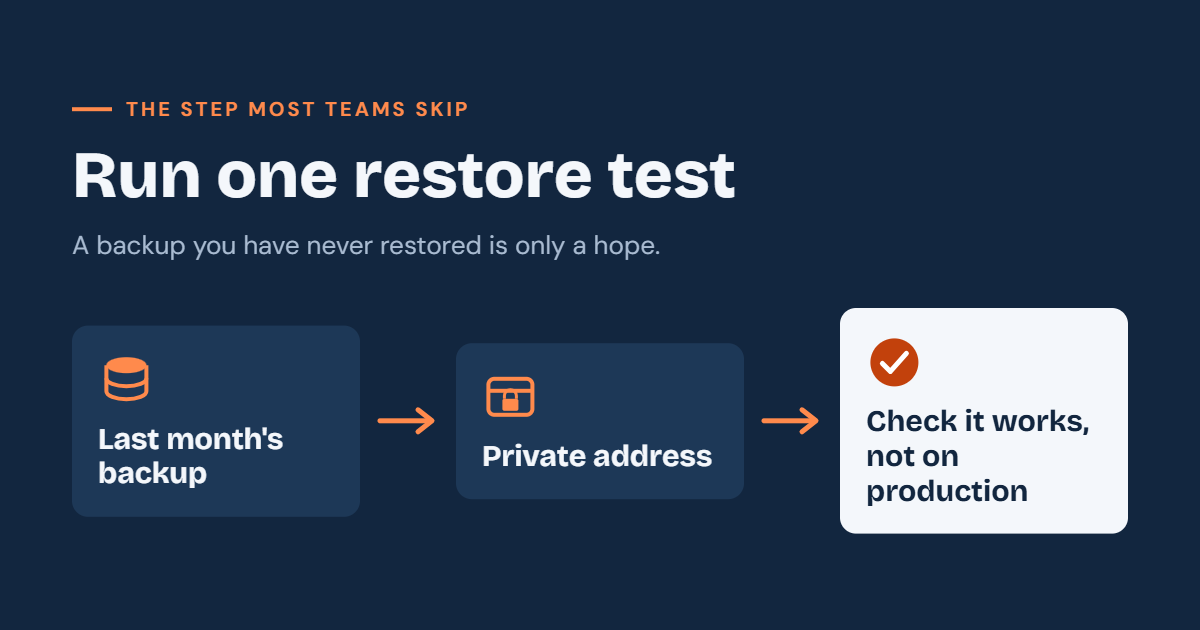
Many people have never done a restore, so here is a plain way to do it.
Pick last month’s backup, not today’s. An older backup proves the system keeps copies over time.
Create a private address, such as a test link, that the public cannot reach.
Restore the backup onto that private address.
Open the test site on a phone and a desktop.
Check the homepage, two inner pages, one image and one form.
Write down how long it took and who did it.
Delete the test copy when you are finished, if it holds customer data.
Do this once in the first week. Then repeat it every few months. The second time will be much faster.
Days 8 to 30 and a simple weekly routine
After week one, keep a light routine. You do not need a long list.
Week two. Fix the broken links and pages you noted. Send one more test through each form.
Week three. Check the site on a phone again. Read the form inbox and look for odd or missing messages. Ask your team if they saw anything strange.
Week four. Review security updates, backups and what changed. Write a short note for the month.
Keep each note short. A line like “updated phone number on the Contact page” is enough. After a few months, these notes become a useful history.
What a basic maintenance month includes
After the first 30 days, maintenance becomes a monthly habit. A basic maintenance month includes five things.
Confirm the site opens on a phone. Check the homepage and the main pages.
Apply security updates. Keep the site software, themes and plugins current.
Name a restore path. Know which backup you would use and who would restore it.
Read the form inbox. Make sure messages are arriving and being answered.
Record what changed. Write down updates, fixes and anything unusual.
Redesigns, ad campaigns and a month of articles are separate work. Mixing them into “maintenance” is how small fixes get delayed. A broken form should not wait behind a new logo. Keep the scope clear, and each job gets the time it needs. For more detail, see hosting and maintenance after go-live.
This is the same idea we use when planning software. A clear boundary helps every project finish. You can read how we do it in how to scope a first software release.
Advantages of this discipline
A short checklist may look small, but it brings real benefits.
Fewer silent form failures. You catch a broken form in days, not months, so fewer leads are lost.
A backup you can trust because someone restored it once. You know it works, and you know who can do it.
Clear ownership when a vendor relationship ends. The domain, analytics and inbox are already yours, so changing providers is simple.
Together, these save time, money and stress. They also help your team feel in control of the website.
Limits to keep in mind
A checklist has limits. It is good to know them.
Uptime alone is not maintenance. A server that answers while the contact form fails is still a broken business site. A site can show a green “online” light and still lose every enquiry.
A checklist also cannot replace expert help for deep problems. If you find a security issue, a slow site that you cannot explain, or a failed restore, ask a technical person to look at it. The checklist helps you find problems. It does not fix them for you.
Who this checklist is for
This checklist is for small business owners, marketing teams and managers who have just launched a website. It is also useful for teams that took over a site from a former vendor and are not sure what they own.
If you built your site with a developer, share this list with them before launch. Agree on who does each task and when. If you want help building a new site, our web development team can plan the launch with you. If your forms feed a sales process, you may also like CRM or spreadsheet for a small sales team.
A quick 30-day checklist you can copy
Day one
Homepage checked on a phone and a desktop
Main contact form tested and received by a person
About, Contact, Privacy and Disclaimer links checked
Domain registrar login and billing email owned by the company
Week one
This month’s backup named, with a person who can restore it
One restore done on a private address
Analytics and form inbox owned by the company
Broken links and old pages noted
Days 8 to 30
Broken items fixed
Phone check repeated
Form inbox read
Updates and changes recorded
Frequently asked questions
What should I check after launching a website?
Check the homepage on a phone and desktop, test your contact form, click the footer links and confirm that your company owns the domain. In the first week, check your backups, run a restore test and confirm ownership of analytics and the form inbox.
How long should a website launch checklist take?
Day-one checks usually take under an hour. Week-one checks take a few hours, mostly for the restore test. After that, a monthly check can be short.
What is a restore test and why does it matter?
A restore test means using a backup to rebuild your site on a private address. It proves that the backup works. Without it, you only hope the backup is good.
Why should I not restore onto the live site?
A test restore onto production can overwrite your real pages, orders or messages. Always use a private address for a test.
Is uptime monitoring enough to keep a website healthy?
No. Uptime only tells you the server answered. It does not tell you if the contact form sends messages, if pages are correct or if backups can be restored.
Who should own the domain, analytics and form inbox?
The company should own all three. Vendors can help manage them, but the logins and billing should stay with you.
What is not included in basic website maintenance?
Redesigns, ad campaigns and a month of articles are separate work. Basic maintenance covers phone checks, security updates, a restore path, the form inbox and a record of changes.
Final thoughts
Launch day is the start of operations. In the first 30 days, check the phone view, test every form, confirm company ownership and restore one backup onto a private address. Then keep a simple monthly routine. These small steps stop silent failures before your customers notice them.
Want help after go-live? If you would like JantaraX to operate hosting and run these checks for you, read about our hosting and maintenance services, or contact us.
Written by Er. Jatin Varshney.